
When using the Codex App for the first time, you need to authorize your ChatGPT account. After authorization is complete, daily use only requires clicking the start button in AcBoter.
1. Click “Authorize”
For first-time use, click the “Authorize” button in AcBoter.

2. Wait for the authorization browser to open
AcBoter will automatically open the authorization browser. No action is needed at this step.
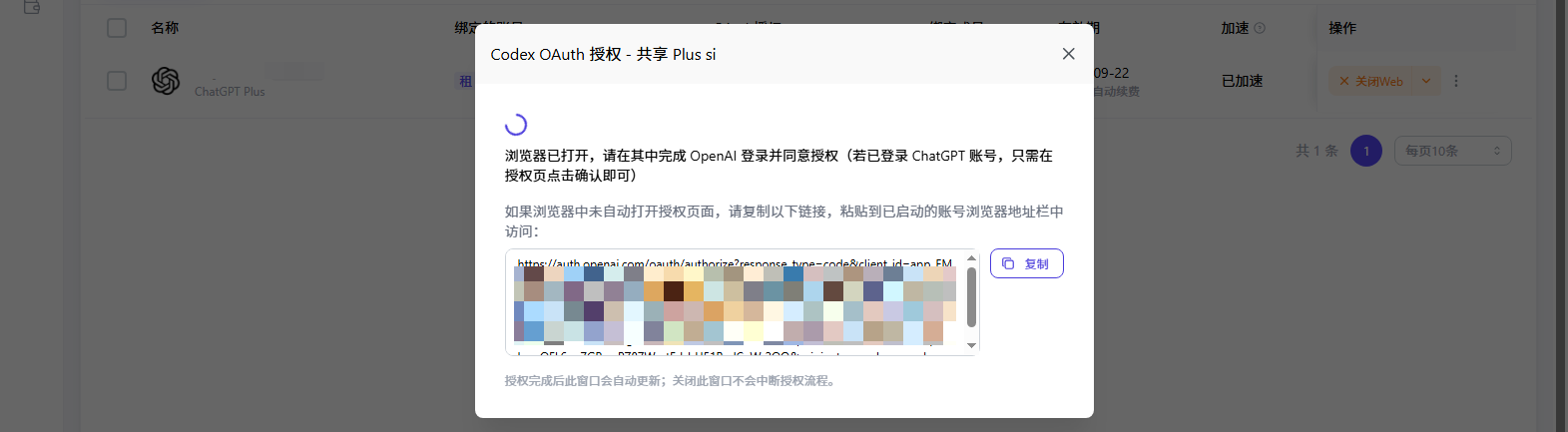
3. Log in to your ChatGPT account
Log in to your ChatGPT account in the authorization browser.
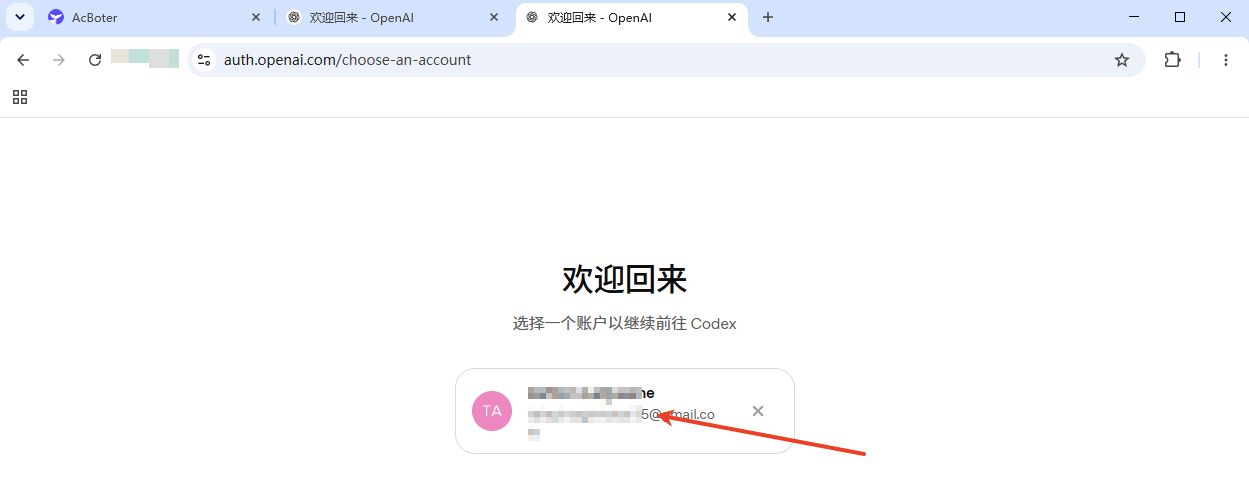
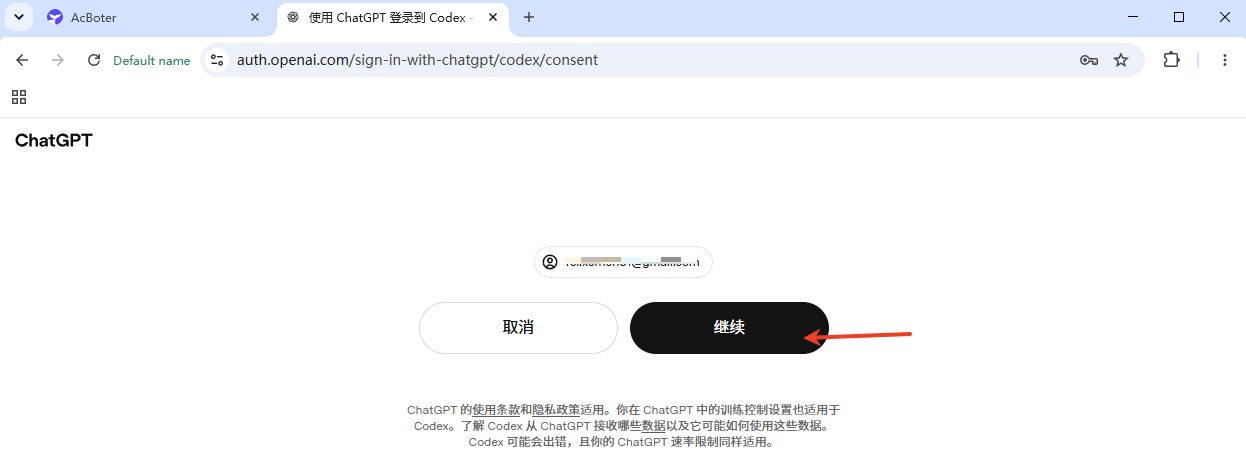
If an account is already logged in, click that account to continue.
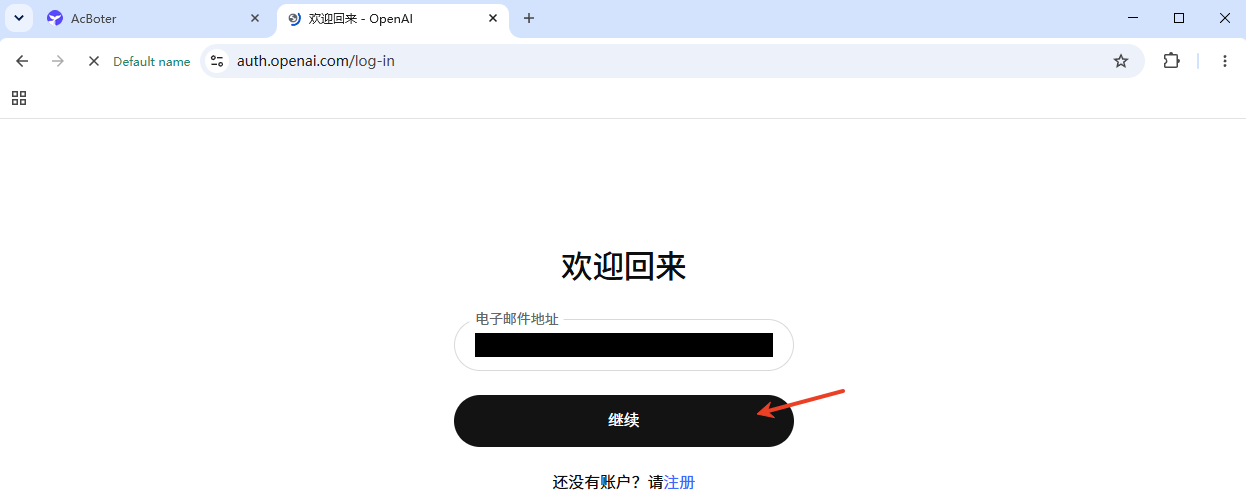
If no account is logged in, click the login button and follow the page instructions.
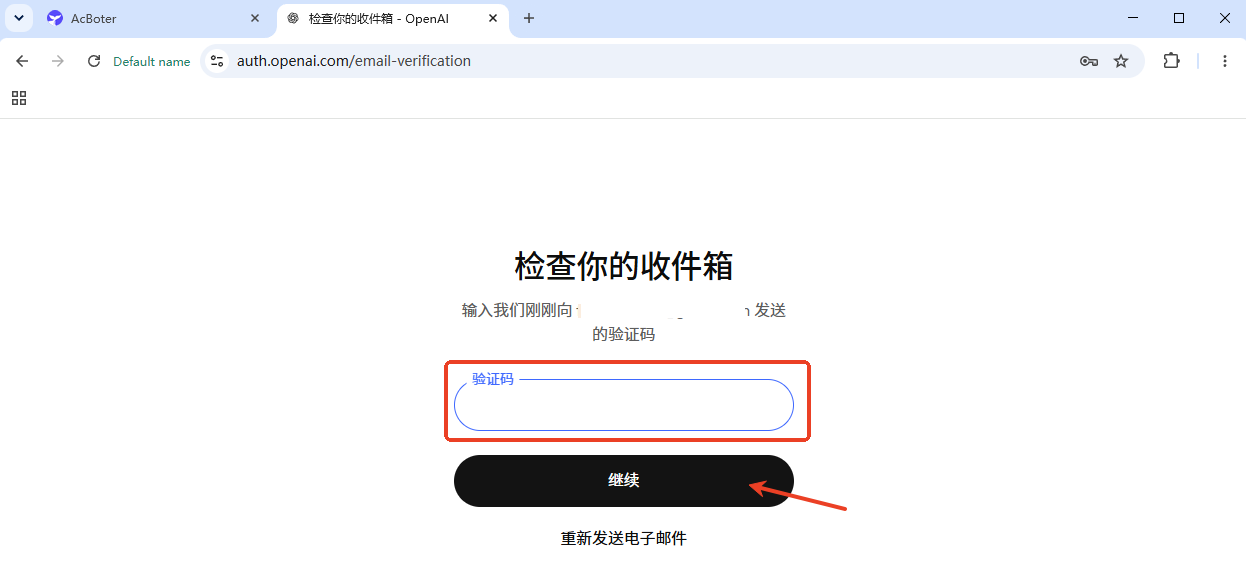
If a verification code is required, contact support to obtain it.
After login succeeds, click continue.
4. Return to AcBoter
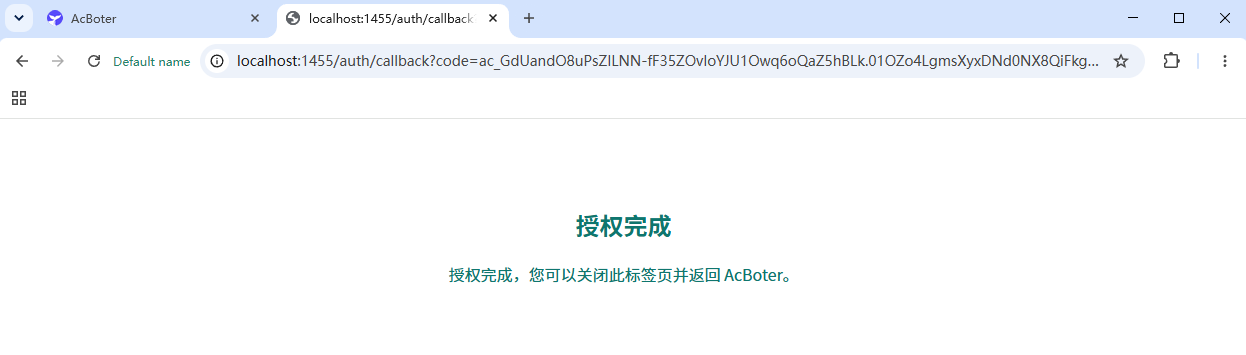
After authorization is complete, close the browser and return to AcBoter.
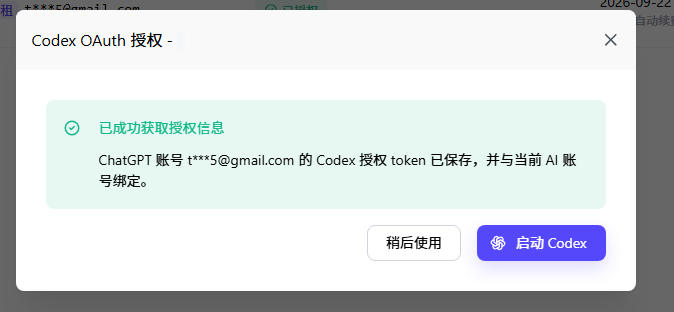
AcBoter will show a success message. Click “Use later”.
5. Start the Codex App
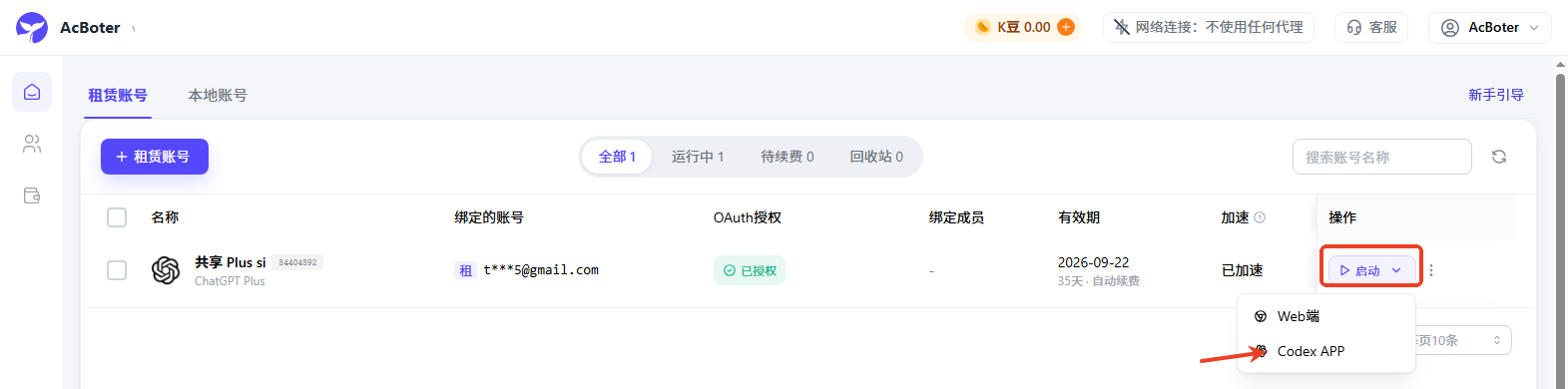
For daily use, click the start button on the far right to open the Codex App.
If the account becomes disconnected, repeat step 1 to authorize it again.