For team collaboration, you can add a member first, send the member’s login credentials to them, and then assign the AI accounts they are allowed to use.
1. Add a team member
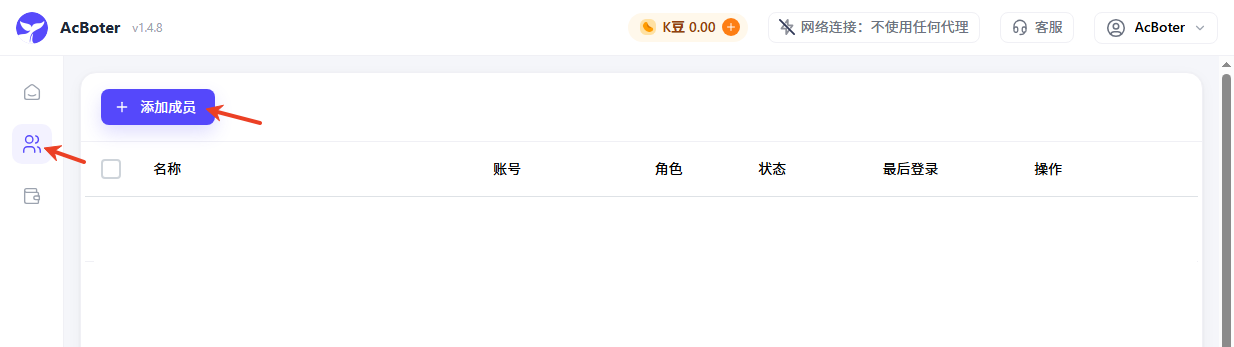
Go to the Team page and click “Add Member”.
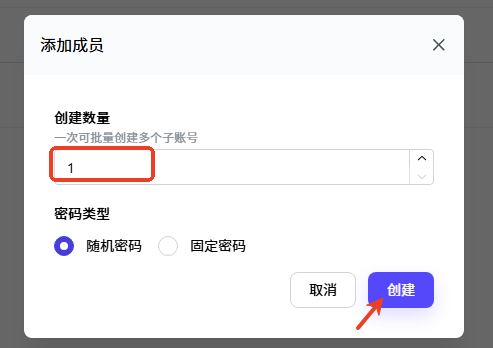
Complete the member creation in the add member window.
2. View and send the member credentials
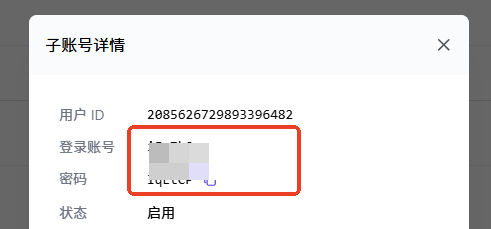
After the member is created, view the member’s account and password.
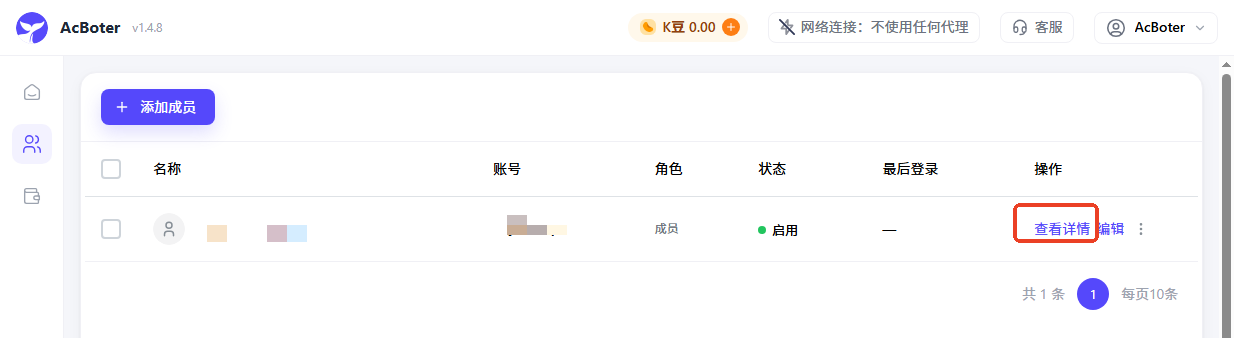
Copy the account and password, then send them to the corresponding team member.
3. Assign accounts to the member
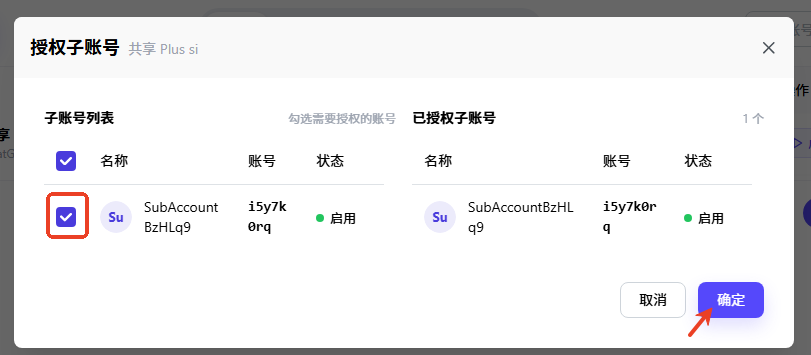
Return to the account page and choose the AI account that should be assigned to the member.
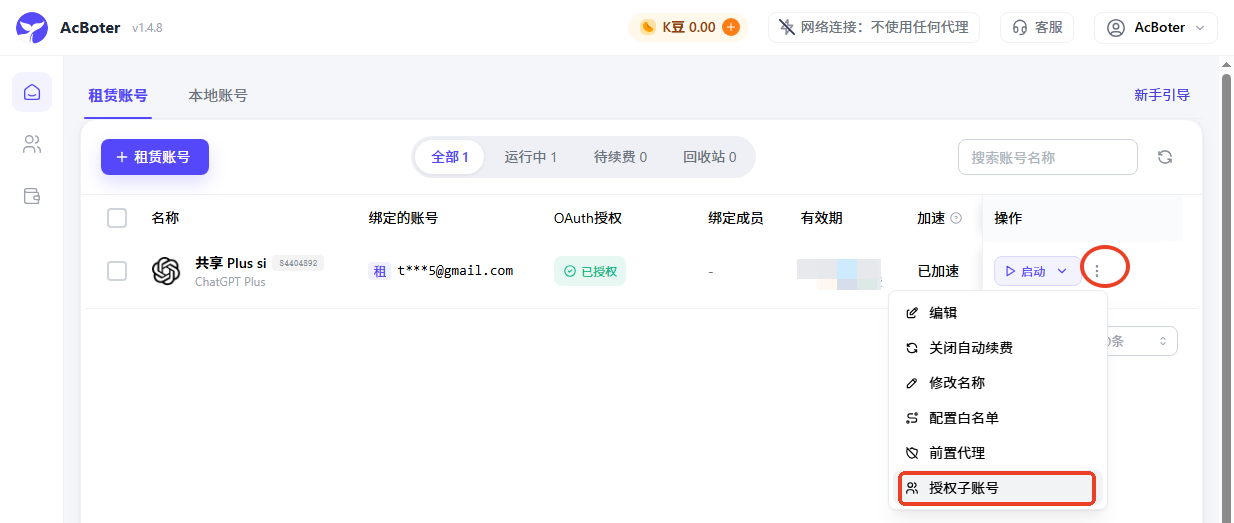
After the assignment is complete, the team member can use the authorized account.
4. Restrict member access methods
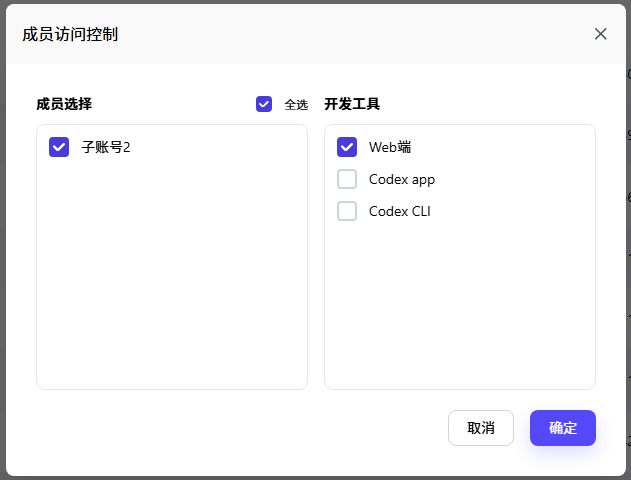
For each account, you can restrict how its assigned members are allowed to access it. Open the account’s “More” menu and select “Member Access Control”.
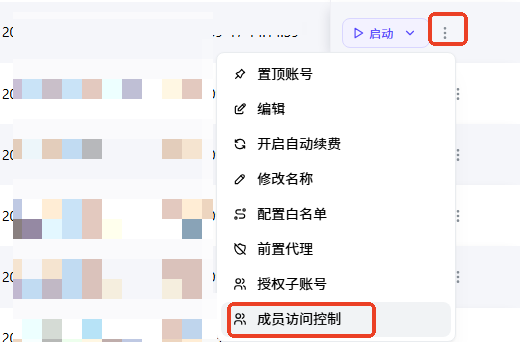
Select the corresponding sub-account on the left, then choose the allowed access methods on the right to manage how that member can access the account.